
- Version
- Download 3
- File Size 1.32 MB
- File Count 1
- Create Date June 5, 2026
- Last Updated June 7, 2026
COUNT Function Cheat Sheet
COUNT Function Cheat Sheet for Google Sheets
The Ultimate Google Sheets COUNT Cheat Sheet (Free Download)
Need a quick reference for counting numbers in Google Sheets? This COUNT Function Cheat Sheet is designed to help you accurately count numeric values, analyze datasets, and build smarter spreadsheets with confidence.
Whether you're a student, teacher, data analyst, accountant, business owner, or spreadsheet enthusiast, this downloadable cheat sheet provides the essential COUNT function syntax, examples, and best practices you need to work more efficiently in Google Sheets.
What Is the COUNT Function in Google Sheets?
The COUNT function returns the number of cells containing numeric values within a specified range.
It is commonly used for:
- Counting sales transactions
- Analyzing datasets
- Tracking completed tasks
- Monitoring inventory records
- Measuring survey responses
- Creating reports and dashboards
- Performing statistical analysis
COUNT is one of the most frequently used functions in Google Sheets because it helps users quickly understand the size and structure of their data.
What You'll Learn in This COUNT Cheat Sheet
✓ COUNT Syntax Explained
Learn the structure of the COUNT function and how it works.
✓ Counting Numbers in a Range
Count all numeric values in selected cells.
✓ Counting Multiple Ranges
Analyze data across different sections of a worksheet.
✓ Understanding What COUNT Includes
Learn which values are counted and which are ignored.
✓ Practical Spreadsheet Applications
Use COUNT in reports, dashboards, trackers, and business analysis.
✓ Common Errors and Fixes
Avoid mistakes and troubleshoot formulas effectively.
What's Included in the Download?
Complete Formula Reference
Quick access to COUNT syntax and usage examples.
Real-World Examples
Practical scenarios for business, education, finance, and data analysis.
Best Practices Guide
Learn efficient ways to use COUNT in large spreadsheets.
Troubleshooting Section
Identify and resolve common COUNT-related issues.
Printable PDF Format
Ideal for keeping on your desk or saving for quick reference.
Sample COUNT Function Examples
Count Numbers in a Range
=COUNT(A2:A100)
Counts all cells containing numbers between A2 and A100.
Count Numbers Across Multiple Ranges
=COUNT(A2:A100,C2:C100)
Counts numeric values from both ranges.
Count Individual Numeric Values and Cells
=COUNT(A2:A20,100,200)
Counts numbers in the range plus the additional numeric values.
Count Numeric Dates
=COUNT(B2:B50)
Since dates are stored as numbers in Google Sheets, they are included in the count.
Count Numeric Results from Formulas
=COUNT(C2:C100)
Counts cells containing formula results that return numbers.
Benefits of Using COUNT
Analyze Data Quickly
Instantly determine how many numeric entries exist in a dataset.
Improve Reporting Accuracy
Verify the completeness of records and calculations.
Build Better Dashboards
Track key metrics and data volumes automatically.
Save Time
Avoid manually counting entries in large datasets.
Support Data Validation
Identify missing or incomplete information more easily.
Who Should Download This Cheat Sheet?
This resource is ideal for:
- Google Sheets users
- Data analysts
- Accountants and finance professionals
- Students and teachers
- Project managers
- Business owners
- Operations teams
- Researchers
- Sales professionals
- Dashboard creators
Whether you're learning spreadsheet basics or building advanced reports, this cheat sheet provides a fast and reliable reference.
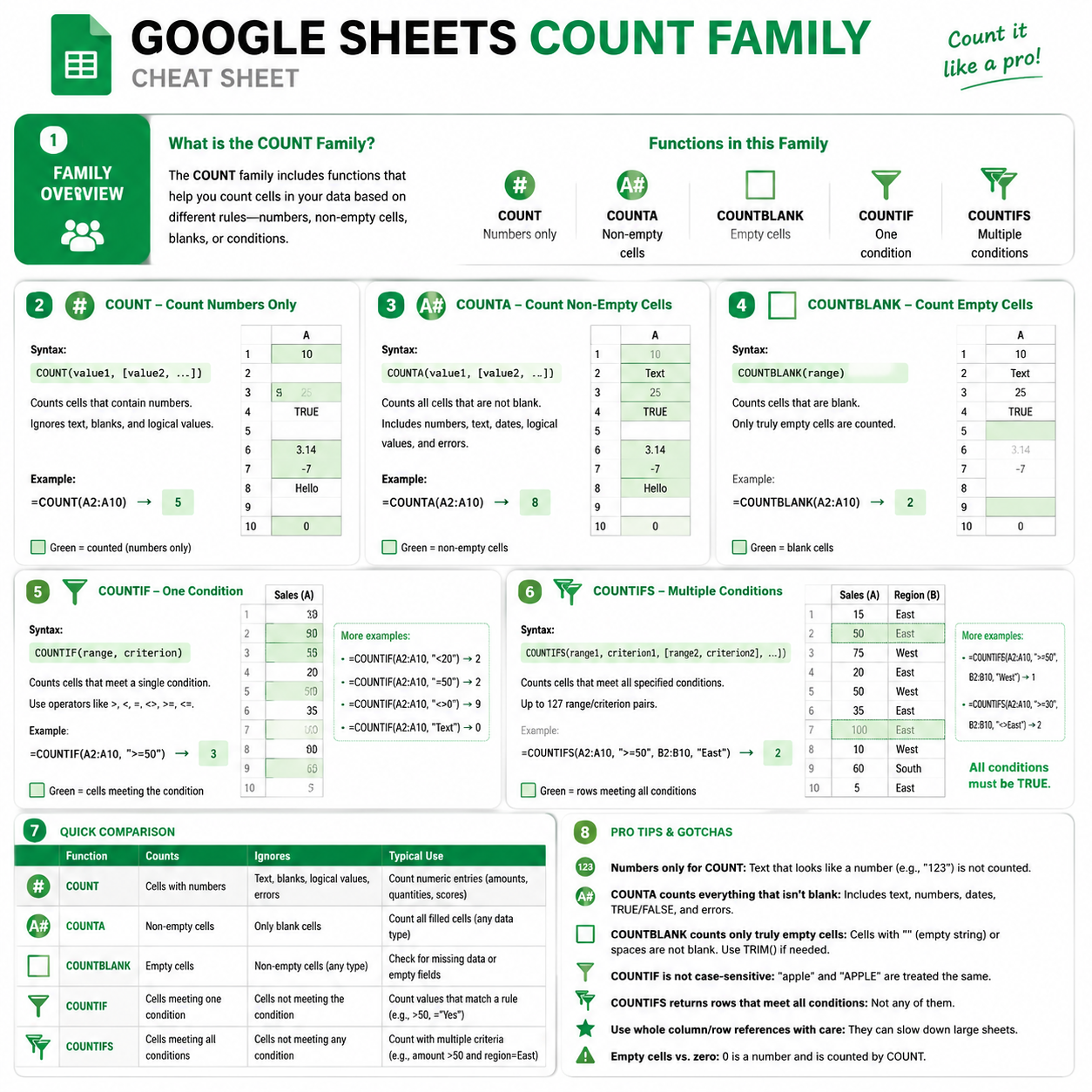
COUNT vs Other Counting Functions
Google Sheets offers several counting functions, each designed for different situations:
COUNT
Counts only numeric values.
=COUNT(A2:A100)
COUNTA
Counts all non-empty cells.
=COUNTA(A2:A100)
COUNTBLANK
Counts empty cells.
=COUNTBLANK(A2:A100)
COUNTIF
Counts cells that meet a specific condition.
=COUNTIF(A2:A100,">100")
COUNTIFS
Counts cells that meet multiple conditions.
=COUNTIFS(A2:A100,">100",B2:B100,"Completed")
Understanding the difference between these functions helps you choose the right counting method for any dataset.
Why Learn the COUNT Function?
The COUNT function serves as a foundation for data analysis in Google Sheets. It allows you to measure datasets, verify records, and create more meaningful reports.
Mastering COUNT can help you work more efficiently with business data, financial reports, project trackers, and dashboards.
It is one of the first functions every Google Sheets user should learn.
Related Google Sheets Resources
You may also be interested in:
- COUNTA Cheat Sheet
- COUNTIF Cheat Sheet
- COUNTIFS Cheat Sheet
- COUNTBLANK Cheat Sheet
- Sum Function Cheat Sheet
- Average Function Cheat Sheet
- FILTER Function Cheat Sheet
- QUERY Function
- ARRAYFORMULA Cheat Sheet
- Google Sheets Dashboard Templates
Download the COUNT Cheat Sheet
Get instant access to this Google Sheets COUNT Function Cheat Sheet and learn how to count numeric values, analyze datasets, and create more effective spreadsheets.
Download now and master the COUNT function in Google Sheets.