
- Version
- Download 5
- File Size 1.23 MB
- File Count 1
- Create Date June 7, 2026
- Last Updated June 7, 2026
FILTER Function Cheat Sheet
FILTER Function Cheat Sheet for Google Sheets
The Ultimate Google Sheets FILTER Cheat Sheet (Free Download)
Want to quickly extract and display only the data you need? This FILTER Function Cheat Sheet is designed to help you create dynamic reports, analyze datasets, and build powerful spreadsheets without manually sorting or hiding rows.
Whether you're a student, teacher, business owner, data analyst, accountant, project manager, or spreadsheet enthusiast, this downloadable cheat sheet provides the essential FILTER function syntax, examples, and best practices you need to work more efficiently in Google Sheets.
What Is the FILTER Function in Google Sheets?
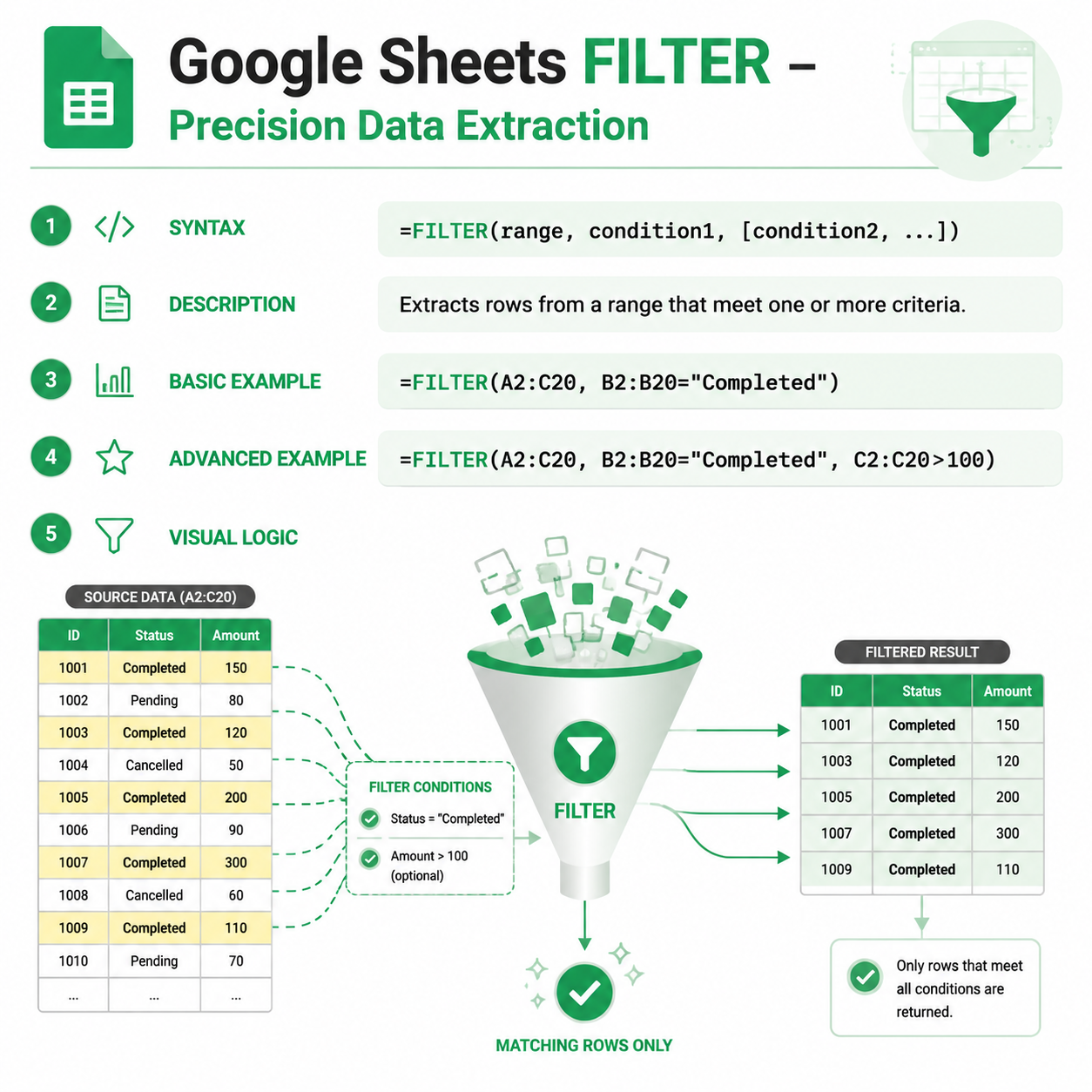
The FILTER function returns only the rows or columns that meet specified conditions.
Unlike traditional filtering tools, the FILTER function creates a dynamic result that automatically updates when your source data changes.
It is commonly used for:
- Creating dynamic reports
- Building dashboards
- Filtering sales records
- Tracking project status
- Analyzing customer data
- Creating searchable tables
- Automating data analysis
FILTER is one of the most powerful data analysis functions available in Google Sheets.
What You'll Learn in This FILTER Cheat Sheet
✓ FILTER Syntax Explained
Understand the structure of the FILTER function and how it works.
✓ Filtering Rows Based on Conditions
Display only records that match specific criteria.
✓ Filtering Numeric Data
Extract values greater than, less than, or equal to a specified number.
✓ Filtering Text Data
Show records containing specific text values.
✓ Using Multiple Conditions
Apply several filtering criteria simultaneously.
✓ Dynamic Reporting Techniques
Build automatically updating reports and dashboards.
✓ Common Errors and Solutions
Learn how to troubleshoot FILTER formulas effectively.
What's Included in the Download?
Complete Formula Reference
Quick access to FILTER syntax and usage examples.
Real-World Examples
Practical applications for business, finance, education, and operations.
Best Practices Guide
Learn how to write efficient and scalable FILTER formulas.
Troubleshooting Section
Fix common FILTER-related issues quickly.
Printable PDF Format
Perfect for digital reference or printing.
FILTER Function Syntax
=FILTER(range, condition1, [condition2], ...)
Arguments
range – The data you want to filter.
condition1 – The first filtering condition.
condition2 – Optional additional conditions.
Sample FILTER Function Examples
Filter Rows Based on Text
=FILTER(A2:D100,B2:B100="Completed")
Returns only rows where the status is "Completed".
Filter Values Greater Than 100
=FILTER(A2:D100,C2:C100>100)
Returns rows where the value in column C exceeds 100.
Filter Multiple Conditions
=FILTER(A2:D100,B2:B100="Completed",C2:C100>100)
Returns rows that meet both conditions.
Filter by Date
=FILTER(A2:D100,D2:D100>=DATE(2025,1,1))
Returns records on or after January 1, 2025.
Filter Non-Blank Cells
=FILTER(A2:A100,A2:A100<>"")
Returns only cells containing data.
Using FILTER with Text Conditions
Filter Specific Categories
=FILTER(A2:D100,B2:B100="Marketing")
Returns only marketing records.
Filter Customer Names
=FILTER(A2:D100,A2:A100="John Smith")
Returns records related to John Smith.
Filter Active Projects
=FILTER(A2:D100,C2:C100="Active")
Returns all active projects.
Using FILTER with Multiple Conditions
AND Logic
=FILTER(A2:D100,B2:B100="Completed",C2:C100>500)
Returns rows meeting both conditions.
OR Logic
=FILTER(A2:D100,(B2:B100="Completed")+(B2:B100="Pending"))
Returns rows matching either condition.
Date and Status Combination
=FILTER(A2:D100,B2:B100="Completed",D2:D100>=TODAY()-30)
Returns completed records from the last 30 days.
Benefits of Using FILTER
Dynamic Results
Filtered data updates automatically when source data changes.
Faster Analysis
Extract relevant information instantly.
Better Reporting
Create dynamic reports without manual filtering.
Build Interactive Dashboards
Display only the data users need to see.
Save Time
Reduce repetitive sorting and filtering tasks.
Who Should Download This Cheat Sheet?
This resource is ideal for:
- Google Sheets users
- Data analysts
- Business professionals
- Accountants and finance teams
- Students and teachers
- Project managers
- Sales professionals
- Marketing analysts
- Operations teams
- Dashboard creators
Whether you're learning spreadsheet fundamentals or building advanced reporting systems, this cheat sheet will help you work smarter with FILTER.
FILTER vs Other Google Sheets Functions
FILTER
Returns rows or columns matching conditions.
=FILTER(A2:D100,B2:B100="Completed")
QUERY
Performs advanced SQL-like filtering and analysis.
=QUERY(A1:D100,"SELECT * WHERE B='Completed'")
SORT
Sorts data without filtering it.
=SORT(A2:D100,2,TRUE)
UNIQUE
Returns unique values from a dataset.
=UNIQUE(A2:A100)
FILTER + SORT
Combine filtering and sorting for dynamic reports.
=SORT(FILTER(A2:D100,B2:B100="Completed"),3,FALSE)
Common FILTER Mistakes
No Matching Results
If no rows match the condition, FILTER returns an error.
Use:
=IFERROR(FILTER(A2:D100,B2:B100="Completed"),"No Results Found")
Mismatched Range Sizes
Wrong:
=FILTER(A2:D100,B2:B50="Completed")
Correct:
=FILTER(A2:D100,B2:B100="Completed")
All condition ranges must match the size of the filtered range.
Incorrect Data Types
Ensure numbers, dates, and text values are formatted correctly before filtering.
Why Learn the FILTER Function?
FILTER is one of the most powerful functions for data analysis in Google Sheets. It allows you to create dynamic reports, dashboards, and workflows that automatically update based on changing data.
Instead of manually sorting, hiding rows, or creating duplicate datasets, FILTER lets you display exactly the information you need with a single formula.
If you regularly work with sales data, project trackers, CRM systems, financial reports, inventory management, or dashboards, mastering FILTER can significantly improve your productivity.
Related Google Sheets Resources
You may also be interested in:
- QUERY Function Cheat Sheet
- SORT Function Cheat Sheet
- UNIQUE Function Cheat Sheet
- ARRAYFORMULA Cheat Sheet
- COUNTIF Cheat Sheet
- SUMIF Cheat Sheet
- VLOOKUP Cheat Sheet
- XLOOKUP Cheat Sheet
- IF Function Cheat Sheet
- Google Sheets Dashboard Templates
Download the FILTER Cheat Sheet
Get instant access to this Google Sheets FILTER Function Cheat Sheet and learn how to extract data dynamically, create smarter reports, and automate spreadsheet analysis.
Download now and master the FILTER function in Google Sheets.