
- Version
- Download 0
- File Size 1.36 MB
- File Count 1
- Create Date June 19, 2026
- Last Updated June 19, 2026
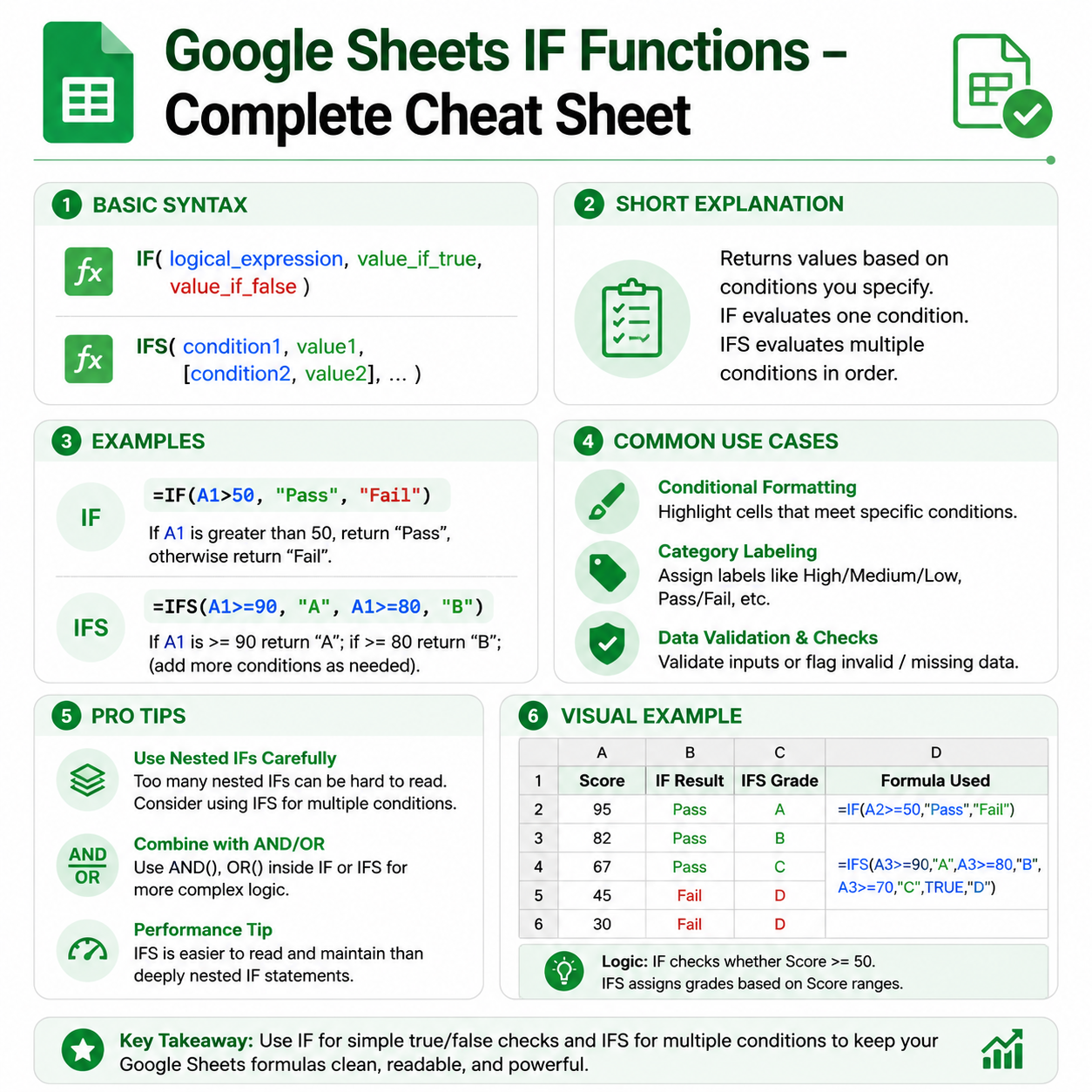
IF Function Cheat Sheet
IF Function Cheat Sheet for Google Sheets
The Ultimate Google Sheets IF Cheat Sheet (Free Download)
Want to make your spreadsheets smarter and more dynamic? This IF Function Cheat Sheet is designed to help you create logical formulas, automate decisions, and analyze data efficiently in Google Sheets.
Whether you're a student, teacher, accountant, business owner, project manager, data analyst, or spreadsheet enthusiast, this downloadable cheat sheet provides the essential IF function syntax, examples, and best practices you need to work more effectively in Google Sheets.
What Is the IF Function in Google Sheets?
The IF function allows you to perform logical tests and return different results based on whether a condition is TRUE or FALSE.
It is one of the most important functions in Google Sheets and serves as the foundation for advanced spreadsheet automation.
The IF function is commonly used for:
- Performance evaluations
- Grade calculations
- Budget tracking
- Sales reporting
- Project management
- Dashboard creation
- Data validation
- Automated decision-making
If you want your spreadsheet to "think" and respond to data automatically, the IF function is essential.
What You'll Learn in This IF Cheat Sheet
✓ IF Function Syntax Explained
Understand how logical tests work in Google Sheets.
✓ Basic IF Statements
Create simple TRUE/FALSE conditions.
✓ Working with Numbers
Compare values using greater than, less than, and equal to operators.
✓ Working with Text
Evaluate text values and categories.
✓ Nested IF Functions
Handle multiple conditions within a single formula.
✓ Combining IF with Other Functions
Use IF alongside AND, OR, IFERROR, COUNTIF, and more.
✓ Practical Business Examples
Apply IF formulas in reports, dashboards, trackers, and analysis tools.
✓ Common Errors and Solutions
Learn how to troubleshoot IF formulas effectively.
What's Included in the Download?
Complete Formula Reference
Quick access to IF syntax and logical operators.
Real-World Examples
Practical use cases for business, education, finance, and project management.
Best Practices Guide
Learn how to write cleaner and more efficient formulas.
Troubleshooting Section
Fix common IF-related errors quickly.
Printable PDF Format
Perfect for digital use or printing as a desk reference.
IF Function Syntax
=IF(logical_expression, value_if_true, value_if_false)
Arguments
logical_expression – The condition you want to test.
value_if_true – The result returned if the condition is TRUE.
value_if_false – The result returned if the condition is FALSE.
Sample IF Function Examples
Basic IF Formula
=IF(A2>100,"Yes","No")
Returns "Yes" if A2 is greater than 100; otherwise returns "No".
Pass or Fail Example
=IF(B2>=60,"Pass","Fail")
Returns "Pass" for scores of 60 or higher.
Budget Status
=IF(C2<=1000,"Within Budget","Over Budget")
Checks whether expenses exceed the budget.
Inventory Monitoring
=IF(D2<10,"Reorder","In Stock")
Flags products that need replenishment.
Employee Bonus Eligibility
=IF(E2>=5000,"Bonus Eligible","Not Eligible")
Evaluates bonus qualification based on performance.
Working with Text in IF
Check a Specific Status
=IF(A2="Completed","Done","Pending")
Returns different outputs based on project status.
Check Department Names
=IF(B2="Marketing","Campaign Team","Other Team")
Categorizes records based on department.
Identify Priority Tasks
=IF(C2="High","Urgent","Normal")
Labels tasks according to priority.
Nested IF Function Examples
Nested IF functions allow you to evaluate multiple conditions.
Student Grade Classification
=IF(A2>=90,"A",IF(A2>=80,"B",IF(A2>=70,"C","D")))
Assigns letter grades based on score ranges.
Sales Performance Levels
=IF(B2>=10000,"Excellent",IF(B2>=5000,"Good","Needs Improvement"))
Categorizes sales performance into different levels.
Employee Rating System
=IF(C2>=95,"Outstanding",IF(C2>=80,"Good","Average"))
Creates automatic employee ratings.
Using IF with AND
Multiple Conditions Must Be True
=IF(AND(A2>=70,B2="Completed"),"Qualified","Not Qualified")
Returns "Qualified" only if both conditions are met.
Bonus Qualification Example
=IF(AND(C2>=5000,D2>=90),"Bonus","No Bonus")
Checks multiple performance criteria.
Using IF with OR
At Least One Condition Must Be True
=IF(OR(A2="VIP",B2>=10000),"Priority","Standard")
Returns "Priority" if either condition is satisfied.
Attendance Check
=IF(OR(C2="Present",C2="Excused"),"Valid","Invalid")
Evaluates attendance status.
Using IFERROR with IF
Handle Errors Gracefully
=IFERROR(IF(A2/B2>1,"Profit","Loss"),"Error")
Prevents formula errors from appearing in reports.
Safe Calculations
=IFERROR(A2/B2,0)
Returns zero instead of an error.
Benefits of Using IF
Automate Decisions
Allow spreadsheets to react automatically to changing data.
Save Time
Reduce manual analysis and repetitive tasks.
Improve Accuracy
Apply consistent logic across large datasets.
Build Better Dashboards
Create dynamic indicators and performance metrics.
Enhance Data Analysis
Generate meaningful insights automatically.
Who Should Download This Cheat Sheet?
This resource is ideal for:
- Google Sheets users
- Students and educators
- Data analysts
- Accountants and finance professionals
- Project managers
- HR professionals
- Sales teams
- Business owners
- Operations specialists
- Dashboard creators
Whether you're a beginner learning spreadsheet fundamentals or an advanced user building automated systems, this cheat sheet will help you master logical formulas.
IF vs Related Google Sheets Functions
IF
Evaluates one condition and returns different results.
=IF(A2>100,"Yes","No")
IFS
Evaluates multiple conditions without nesting.
=IFS(A2>=90,"A",A2>=80,"B",A2>=70,"C")
IFERROR
Handles formula errors gracefully.
=IFERROR(A2/B2,"Error")
AND
Returns TRUE only when all conditions are met.
=AND(A2>100,B2="Completed")
OR
Returns TRUE when at least one condition is met.
=OR(A2>100,B2="Completed")
Understanding these functions helps you create more advanced and efficient spreadsheets.
Common IF Function Mistakes
Missing Quotation Marks Around Text
Wrong:
=IF(A2=Completed,"Yes","No")
Correct:
=IF(A2="Completed","Yes","No")
Incorrect Parentheses
Wrong:
=IF(A2>100,"Yes","No"
Correct:
=IF(A2>100,"Yes","No")
Overusing Nested IFs
For many conditions, consider using:
=IFS(...)
to improve readability and maintenance.
Why Learn the IF Function?
The IF function is one of the most important formulas in Google Sheets because it introduces logic into your spreadsheets. It enables automated decisions, dynamic reporting, intelligent dashboards, and advanced data analysis.
Almost every advanced spreadsheet model relies on IF formulas in some way.
If you regularly work with reports, budgets, project trackers, performance metrics, inventory systems, or dashboards, mastering the IF function will dramatically improve your spreadsheet skills.
Related Google Sheets Resources
You may also be interested in:
- IFS Function Cheat Sheet
- IFERROR Function Cheat Sheet
- AND Function Cheat Sheet
- OR Function Cheat Sheet
- COUNTIF Function Cheat Sheet
- SUMIF Cheat Sheet
- FILTER Function Cheat Sheet
- QUERY Function Cheat Sheet
- ARRAYFORMULA Cheat Sheet
- Google Sheets Dashboard Templates
Download the IF Cheat Sheet
Get instant access to this Google Sheets IF Function Cheat Sheet and learn how to automate decisions, build smarter spreadsheets, and improve your data analysis workflow.
Download now and master the IF function in Google Sheets.