
- Version
- Download 1
- File Size 1.38 MB
- File Count 1
- Create Date June 19, 2026
- Last Updated June 19, 2026
IMPORTRANGE Function Cheat Sheet
IMPORTRANGE Function Cheat Sheet for Google Sheets
The Ultimate Google Sheets IMPORTRANGE Cheat Sheet (Free Download)
Need to pull data from one Google Sheet into another automatically? This IMPORTRANGE Function Cheat Sheet is your quick reference guide for connecting spreadsheets, consolidating data, and building powerful reporting systems in Google Sheets.
Whether you're a business owner, data analyst, project manager, accountant, teacher, student, or spreadsheet enthusiast, this downloadable cheat sheet provides the essential IMPORTRANGE function syntax, examples, and best practices you need to work more efficiently with multiple spreadsheets.
What Is the IMPORTRANGE Function in Google Sheets?
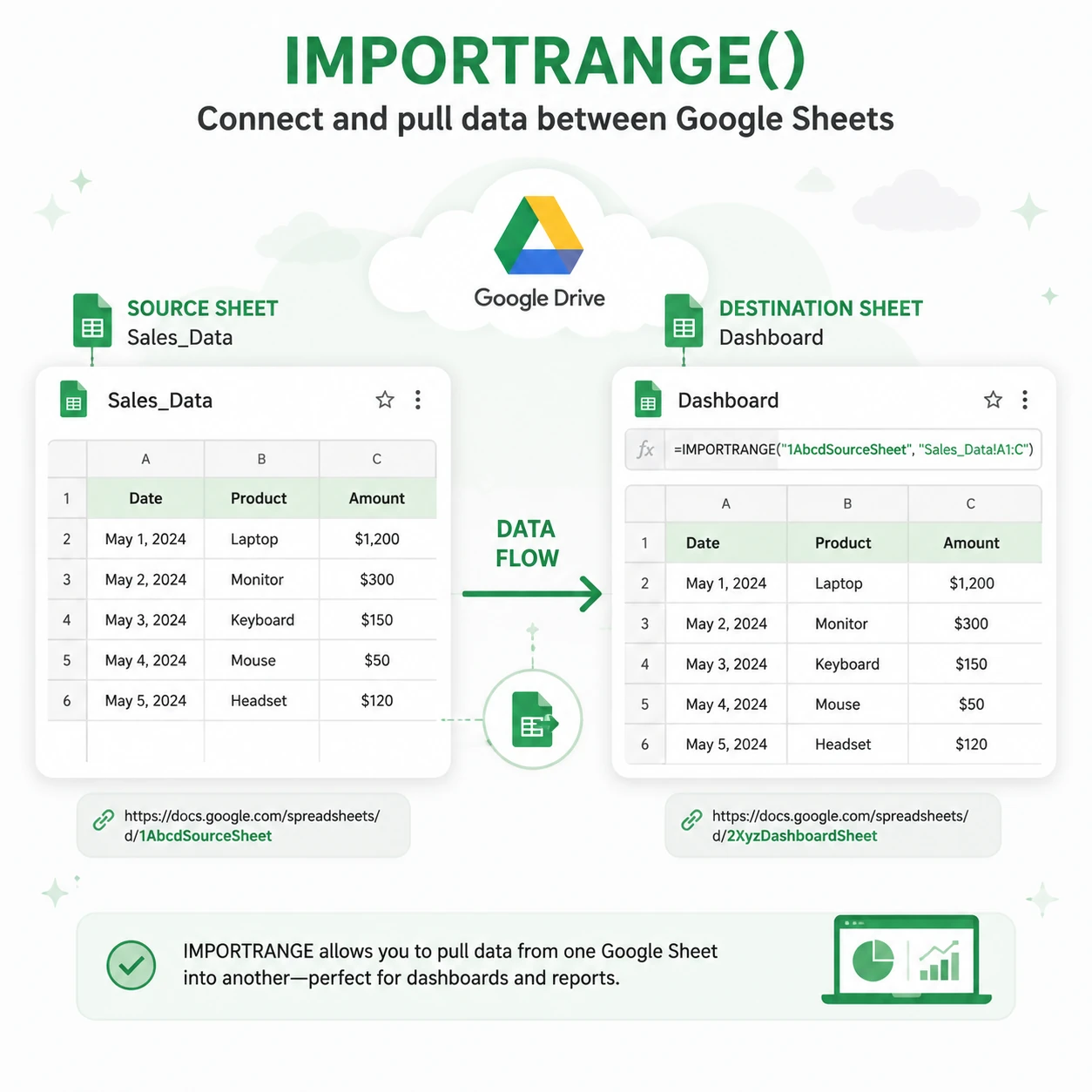
The IMPORTRANGE function allows you to import data from one Google Sheets file into another.
Instead of manually copying and pasting data, IMPORTRANGE creates a live connection between spreadsheets so your data updates automatically whenever the source sheet changes.
It is commonly used for:
- Consolidating data from multiple spreadsheets
- Building dashboards
- Creating automated reports
- Sharing selected data between teams
- Connecting department spreadsheets
- Tracking project information
- Managing business data across multiple files
IMPORTRANGE is one of the most powerful collaboration and reporting functions in Google Sheets.
What You'll Learn in This IMPORTRANGE Cheat Sheet
✓ IMPORTRANGE Syntax Explained
Understand how the function works and how to connect spreadsheets.
✓ Importing Single Ranges
Pull data from a specific sheet and range.
✓ Importing Entire Tables
Transfer large datasets between spreadsheets.
✓ Dynamic Reporting
Build automatically updating dashboards and reports.
✓ Combining IMPORTRANGE with Other Functions
Use FILTER, QUERY, SORT, and ARRAYFORMULA with imported data.
✓ Permission Management
Learn how access and authorization work.
✓ Common Errors and Solutions
Troubleshoot IMPORTRANGE issues quickly.
What's Included in the Download?
Complete Formula Reference
Quick access to IMPORTRANGE syntax and examples.
Real-World Use Cases
Business, education, finance, operations, and reporting examples.
Best Practices Guide
Learn how to optimize spreadsheet performance.
Troubleshooting Section
Fix common connection and permission errors.
Printable PDF Format
Perfect for digital reference or printing.
IMPORTRANGE Function Syntax
=IMPORTRANGE(spreadsheet_url, range_string)
Arguments
spreadsheet_url – The URL or spreadsheet ID of the source Google Sheet.
range_string – The sheet name and range you want to import.
Sample IMPORTRANGE Function Examples
Import a Single Range
=IMPORTRANGE("https://docs.google.com/spreadsheets/d/ABC123","Sheet1!A1:D100")
Imports cells A1:D100 from Sheet1.
Import an Entire Column
=IMPORTRANGE("https://docs.google.com/spreadsheets/d/ABC123","Sales!A:A")
Imports all data from column A.
Import Multiple Columns
=IMPORTRANGE("https://docs.google.com/spreadsheets/d/ABC123","Inventory!A:F")
Imports columns A through F.
Import a Single Cell
=IMPORTRANGE("https://docs.google.com/spreadsheets/d/ABC123","Dashboard!B2")
Returns the value stored in cell B2.
Import Using Spreadsheet ID
=IMPORTRANGE("ABC123XYZ456","Sheet1!A1:C50")
Uses the spreadsheet ID instead of the full URL.
First-Time Authorization
When using IMPORTRANGE for the first time between two spreadsheets, Google Sheets requires permission.
After entering the formula, you'll see:
#REF!
Click Allow Access to establish the connection.
Once approved, future imports update automatically.
Combining IMPORTRANGE with FILTER
Import Only Completed Tasks
=FILTER(
IMPORTRANGE("ABC123","Tasks!A:D"),
IMPORTRANGE("ABC123","Tasks!C:C")="Completed"
)
Returns only completed tasks from another spreadsheet.
Combining IMPORTRANGE with QUERY
Import and Filter Sales Data
=QUERY(
IMPORTRANGE("ABC123","Sales!A:F"),
"SELECT Col1, Col3 WHERE Col4 > 1000",
1
)
Returns records where sales exceed 1000.
Import Specific Columns
=QUERY(
IMPORTRANGE("ABC123","Employees!A:H"),
"SELECT Col1, Col2, Col5",
1
)
Imports only selected columns.
Combining IMPORTRANGE with SORT
Sort Imported Data
=SORT(
IMPORTRANGE("ABC123","Sales!A:D"),
3,
FALSE
)
Sorts imported data by the third column in descending order.
Combining IMPORTRANGE with UNIQUE
Remove Duplicate Records
=UNIQUE(
IMPORTRANGE("ABC123","Customers!A:A")
)
Returns unique customer names from another spreadsheet.
Benefits of Using IMPORTRANGE
Connect Multiple Spreadsheets
Build centralized reporting systems across teams.
Automate Data Transfers
Eliminate manual copying and pasting.
Improve Collaboration
Share data between departments efficiently.
Create Dynamic Dashboards
Pull live information from multiple sources.
Save Time
Reduce repetitive data management tasks.
Who Should Download This Cheat Sheet?
This resource is ideal for:
- Google Sheets users
- Data analysts
- Accountants and finance professionals
- Business owners
- Project managers
- Operations teams
- HR departments
- Sales professionals
- Marketing analysts
- Dashboard creators
Whether you're managing a small project or a company-wide reporting system, this cheat sheet will help you work more effectively with connected spreadsheets.
Common IMPORTRANGE Errors
#REF! Error
Usually caused by missing permissions.
Solution:
- Open the formula cell.
- Click Allow Access.
Incorrect Sheet Name
Wrong:
=IMPORTRANGE("ABC123","SalesData!A:D")
If the sheet is actually named "Sales".
Correct:
=IMPORTRANGE("ABC123","Sales!A:D")
Invalid Range
Ensure the specified sheet and range exist.
Access Denied
Verify that you have permission to view the source spreadsheet.
Best Practices for IMPORTRANGE
Use Spreadsheet IDs Instead of Long URLs
Shorter formulas are easier to manage.
Avoid Excessive Imports
Large numbers of IMPORTRANGE formulas can slow down spreadsheets.
Combine with QUERY
Filter imported data before processing it further.
Centralize Reporting
Use one dashboard sheet to aggregate data from multiple sources.
Minimize Duplicate Imports
Import data once and reference it locally whenever possible.
Why Learn the IMPORTRANGE Function?
IMPORTRANGE is one of the most valuable functions for anyone working with multiple Google Sheets files. It enables automated reporting, cross-team collaboration, centralized dashboards, and scalable spreadsheet systems.
Instead of manually moving data between spreadsheets, IMPORTRANGE keeps everything synchronized automatically.
If you work with reports, dashboards, CRM systems, financial models, inventory management, project tracking, or business analytics, mastering IMPORTRANGE can significantly improve your productivity.
Related Google Sheets Resources
You may also be interested in:
- QUERY Function Cheat Sheet
- FILTER Function Cheat Sheet
- ARRAYFORMULA Cheat Sheet
- SORT Function Cheat Sheet
- UNIQUE Function Cheat Sheet
- VLOOKUP Cheat Sheet
- XLOOKUP Cheat Sheet
- INDEX MATCH Cheat Sheet
- IF Function Cheat Sheet
- Google Sheets Dashboard Templates
Download the IMPORTRANGE Cheat Sheet
Get instant access to this Google Sheets IMPORTRANGE Function Cheat Sheet and learn how to connect spreadsheets, automate reporting, and build powerful data workflows.
Download now and master the IMPORTRANGE function in Google Sheets.