
- Version
- Download 4
- File Size 1.33 MB
- File Count 1
- Create Date June 19, 2026
- Last Updated June 19, 2026
INDEX and MATCH Function Cheat Sheet
INDEX & MATCH Cheat Sheet for Google Sheets
The Ultimate Google Sheets INDEX & MATCH Cheat Sheet (Free Download)
Looking for a more flexible alternative to VLOOKUP? This INDEX & MATCH Cheat Sheet is your complete guide to performing powerful lookups, retrieving data from any column, and building advanced spreadsheets in Google Sheets.
Whether you're a data analyst, accountant, business owner, project manager, student, teacher, or spreadsheet enthusiast, this downloadable cheat sheet provides the essential INDEX and MATCH syntax, examples, and best practices you need to master one of the most important lookup techniques in Google Sheets.
What Are INDEX and MATCH in Google Sheets?
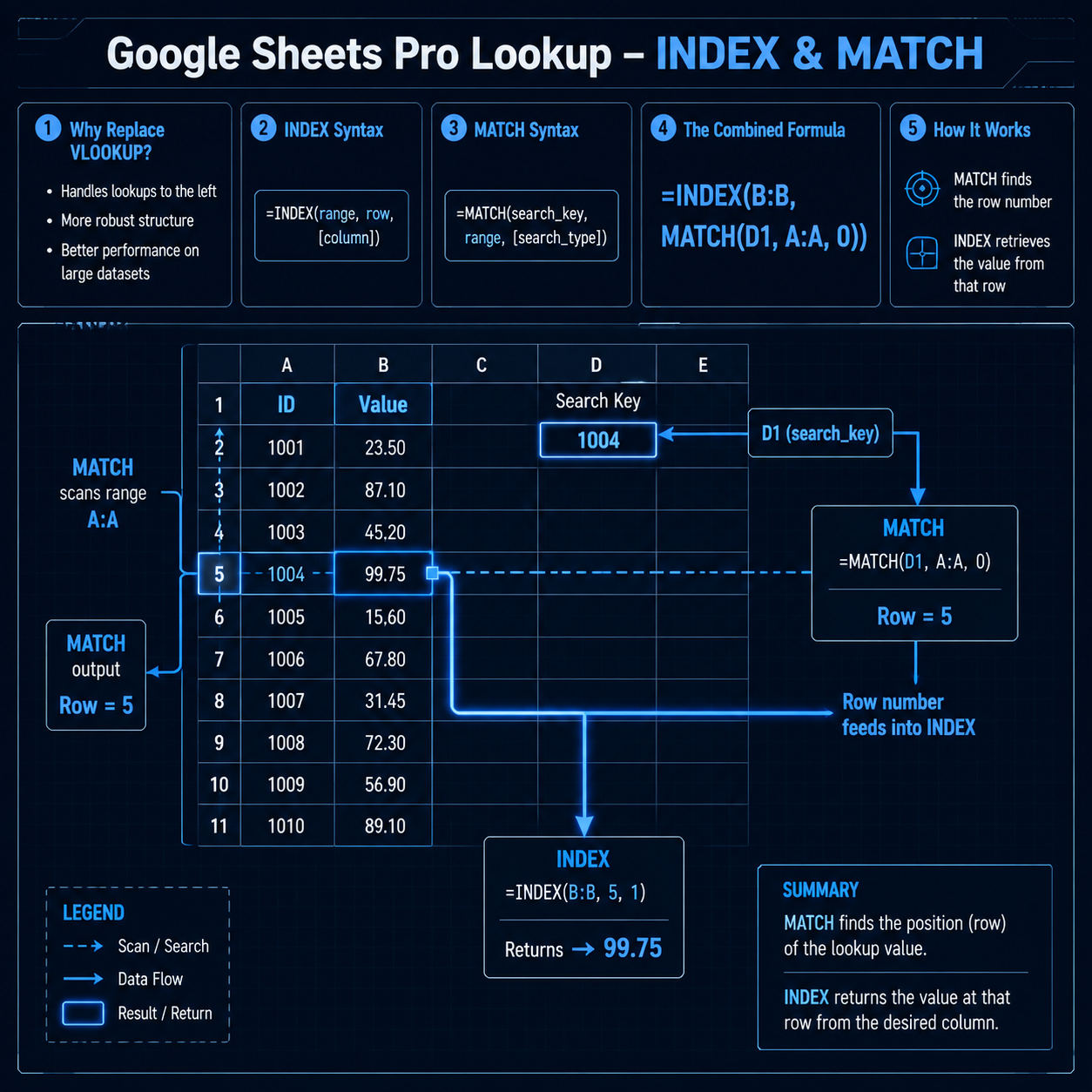
INDEX and MATCH are two functions that are often combined to perform advanced lookups.
INDEX
Returns a value from a specified row and column within a range.
MATCH
Returns the position of a value within a range.
When used together, INDEX and MATCH provide a powerful alternative to VLOOKUP that is more flexible, scalable, and efficient.
They are commonly used for:
- Finding customer information
- Retrieving product details
- Building dashboards
- Financial modeling
- Inventory management
- Employee databases
- Dynamic reporting
- Advanced spreadsheet automation
Why Use INDEX & MATCH Instead of VLOOKUP?
Many spreadsheet professionals prefer INDEX & MATCH because it offers several advantages:
✓ Lookup in Any Direction
Unlike VLOOKUP, INDEX & MATCH can search both left and right.
✓ Better Performance
Works more efficiently with large datasets.
✓ More Flexible
Column insertions won't break your formulas.
✓ Easier Maintenance
Formulas remain reliable even when data structures change.
✓ Supports Dynamic Lookups
Ideal for advanced dashboards and reporting systems.
What You'll Learn in This INDEX & MATCH Cheat Sheet
✓ INDEX Function Syntax
Learn how to retrieve values from ranges.
✓ MATCH Function Syntax
Find the position of a value within a dataset.
✓ Combining INDEX and MATCH
Perform powerful dynamic lookups.
✓ Vertical and Horizontal Lookups
Search rows and columns efficiently.
✓ Two-Way Lookups
Retrieve values using row and column criteria.
✓ Error Handling Techniques
Prevent lookup errors in reports and dashboards.
✓ Real-World Business Examples
Apply INDEX & MATCH in sales, finance, operations, and analytics.
What's Included in the Download?
Complete Formula Reference
Quick access to INDEX and MATCH syntax.
Practical Lookup Examples
Real-world scenarios and use cases.
Best Practices Guide
Write cleaner and more scalable lookup formulas.
Troubleshooting Section
Fix common INDEX & MATCH issues quickly.
Printable PDF Format
Perfect for keeping as a desktop reference.
INDEX Function Syntax
=INDEX(reference, row, [column])
Arguments
reference – The range containing the data.
row – The row number to retrieve.
column – Optional column number.
INDEX Function Example
Return a Value from a Range
=INDEX(A2:C10,3,2)
Returns the value in the third row and second column of the range.
MATCH Function Syntax
=MATCH(search_key, range, [search_type])
Arguments
search_key – The value to find.
range – The range to search.
search_type – Optional match mode.
- 0 = Exact match
- 1 = Less than or equal
- -1 = Greater than or equal
MATCH Function Example
Find the Position of a Product
=MATCH("Laptop",A2:A100,0)
Returns the position of "Laptop" within the range.
Combining INDEX and MATCH
The most common usage is:
=INDEX(return_range,MATCH(lookup_value,lookup_range,0))
This formula finds a value and returns related information from another column.
Sample INDEX & MATCH Examples
Lookup Employee Salary
=INDEX(B2:B100,MATCH("John Smith",A2:A100,0))
Returns John Smith's salary.
Lookup Product Price
=INDEX(C2:C100,MATCH(E2,A2:A100,0))
Returns the price for the product specified in E2.
Lookup Student Grade
=INDEX(C2:C50,MATCH("Emma",A2:A50,0))
Returns Emma's grade.
Dynamic Customer Search
=INDEX(D2:D500,MATCH(H2,A2:A500,0))
Returns information based on the customer name entered in H2.
Two-Way Lookup with INDEX & MATCH
Retrieve data using both row and column criteria.
Example
=INDEX(B2:G20,
MATCH("Product A",A2:A20,0),
MATCH("March",B1:G1,0))
Returns Product A's value for March.
This technique is commonly used in dashboards and reporting systems.
Using INDEX & MATCH with IFERROR
Handle Missing Results
=IFERROR(
INDEX(B2:B100,MATCH(E2,A2:A100,0)),
"Not Found"
)
Returns "Not Found" instead of an error.
Using INDEX & MATCH with Multiple Criteria
Lookup Based on Two Conditions
=INDEX(C2:C100,
MATCH(1,
(A2:A100=E2)*(B2:B100=F2),
0))
Finds a value that matches multiple criteria simultaneously.
This is especially useful for advanced reporting and analytics.
Benefits of Using INDEX & MATCH
More Flexible Than VLOOKUP
Lookup values from any direction.
Better for Large Datasets
Efficient and scalable.
Resistant to Structural Changes
Adding columns won't break formulas.
Supports Advanced Reporting
Perfect for dashboards and business analytics.
Improves Spreadsheet Performance
Especially in large workbooks.
Who Should Download This Cheat Sheet?
This resource is ideal for:
- Google Sheets users
- Data analysts
- Financial analysts
- Accountants
- Business owners
- Project managers
- Students and educators
- Operations teams
- Sales professionals
- Dashboard creators
Whether you're learning spreadsheet fundamentals or building enterprise-level reporting systems, INDEX & MATCH is an essential skill.
INDEX & MATCH vs VLOOKUP
VLOOKUP
=VLOOKUP(E2,A2:C100,3,FALSE)
Limitations:
- Can only search to the right
- Breaks when columns are inserted
- Less flexible
INDEX & MATCH
=INDEX(C2:C100,MATCH(E2,A2:A100,0))
Advantages:
- Searches in any direction
- More robust
- Better performance
- Easier to maintain
Common INDEX & MATCH Mistakes
Forgetting Exact Match Mode
Wrong:
=MATCH(E2,A2:A100)
Correct:
=MATCH(E2,A2:A100,0)
Always use 0 when you need an exact match.
Mismatched Range Sizes
Wrong:
=INDEX(B2:B50,MATCH(E2,A2:A100,0))
The ranges should correspond to the same dataset.
Missing Error Handling
Use:
=IFERROR(
INDEX(B2:B100,MATCH(E2,A2:A100,0)),
"Not Found"
)
to improve user experience.
Why Learn INDEX & MATCH?
INDEX & MATCH is one of the most valuable lookup techniques in Google Sheets. It provides greater flexibility, reliability, and scalability than traditional lookup functions.
Professionals use INDEX & MATCH for dashboards, financial models, inventory systems, CRM databases, project trackers, and business reports because it delivers accurate results even as datasets evolve.
Mastering INDEX & MATCH can significantly improve your spreadsheet skills and prepare you for more advanced data analysis tasks.
Related Google Sheets Resources
You may also be interested in:
- VLOOKUP Cheat Sheet
- XLOOKUP Cheat Sheet
- QUERY Function Cheat Sheet
- FILTER Function Cheat Sheet
- ARRAYFORMULA Cheat Sheet
- IF Function Cheat Sheet
- SUMIF Cheat Sheet
- COUNTIF Cheat Sheet
- IMPORTRANGE Cheat Sheet
- Google Sheets Dashboard Templates
Download the INDEX & MATCH Cheat Sheet
Get instant access to this Google Sheets INDEX & MATCH Cheat Sheet and learn how to perform flexible lookups, retrieve data efficiently, and build smarter spreadsheets.
Download now and master INDEX & MATCH in Google Sheets.