
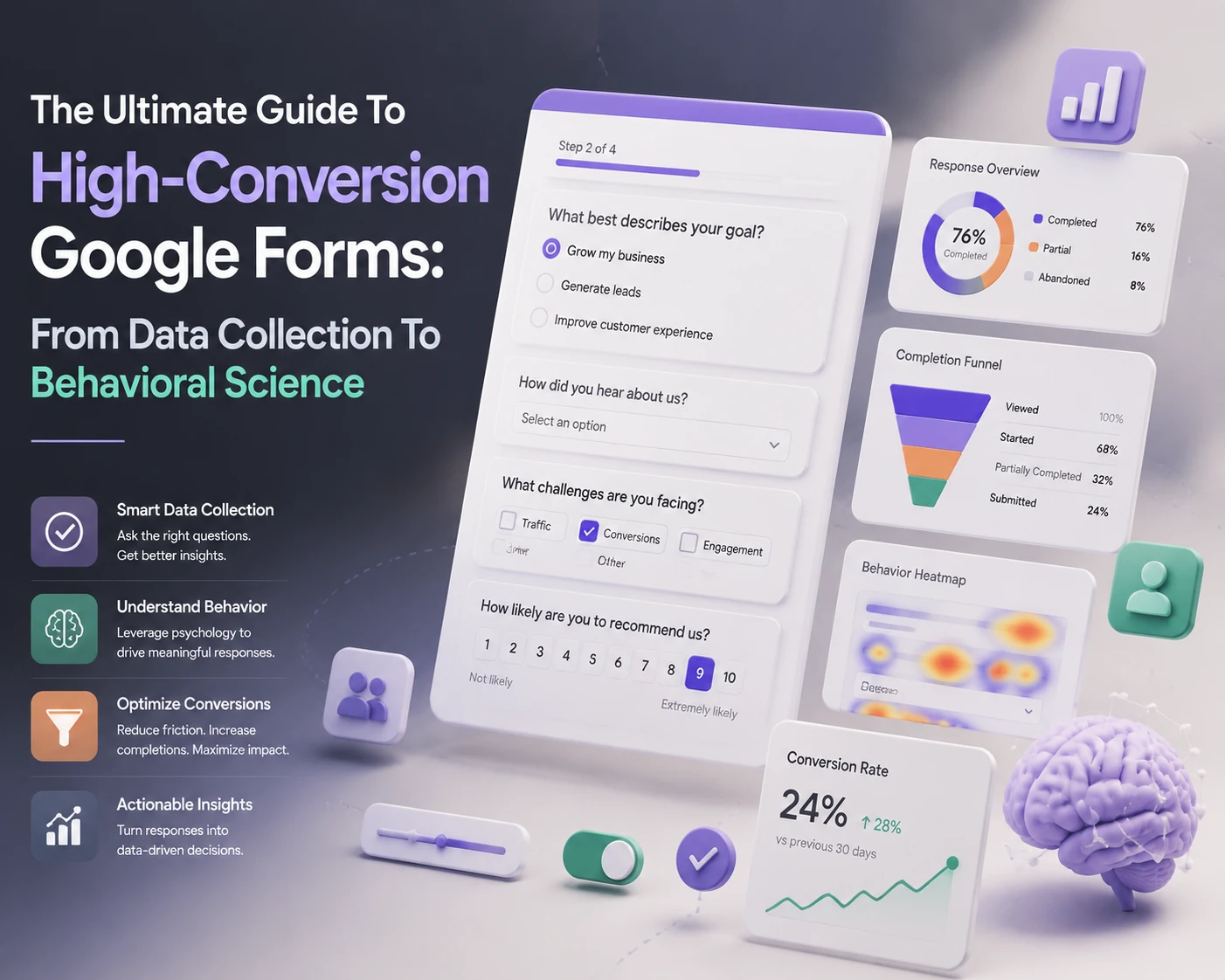
The Ultimate Guide to High-Conversion Google Forms: From Data Collection to Behavioral Science

The Ultimate Guide to High-Conversion Google Forms: From Data Collection to Behavioral Science
Introduction: Why Most Surveys Fail (And How to Fix It)
Did you know that the average survey completion rate hovers around a dismal 30%? For most creators, a survey is a “leaky bucket”, you pour in potential respondents, but the majority evaporate before hitting the “Submit” button. Whether you are a marketing specialist trying to decode consumer behavior or a researcher seeking precise data points, friction is your greatest enemy.
In this deep dive, we aren’t just looking at how to click “plus” to add a question. We are exploring the “psychometrics of survey design” and the technical “power moves” within Google Forms that transform a boring questionnaire into a high-converting data engine. We’ll bridge the gap between “just a form” and a professional data collection workflow that respects the respondent’s time and maximizes your ROI.
The Psychology of High-Conversion Surveys
Before touching a single setting, you must understand Survey Fatigue. Specialists know that every additional question reduces the completion rate by an average of 5% to 10%. To combat this, we apply two psychological principles:
The Zeigarnik Effect
People are more likely to finish a task they have already started. By using Progress Bars (found in Settings > Presentation), you give the user a visual dopamine hit every time they move closer to the finish line.
Cognitive Load Reduction
Don’t ask the user to think harder than necessary. Use Recognition over Recall. Instead of asking an open-ended “What do you like about our product?”, provide a multi-select list of features. This lowers the barrier to entry.
Strategic Design: Visuals and Branding
A generic-looking Google Form screams “low effort”, which leads to “low quality” responses. To increase conversions, you must establish brand authority.
Custom Headers: Don’t use the stock themes. Upload a high-resolution image (1600×400 pixels) that aligns with your brand’s color palette.
The Power of Color: Use a color scheme that evokes the right emotion. Blue for trust (financial/B2B), green for growth/health, or orange for high energy/sales.
Section Breaks: Never present 20 questions on one page. This is the fastest way to trigger a “bounce”. Use the “Add Section” tool to group questions logically. Aim for no more than 3-4 questions per screen.
Mastering “Conditional Logic” for Personalized Paths
This is the “specialist” level of Google Forms. Logic Branching (Go to section based on answer) ensures that respondents only see questions relevant to them.
How to implement it:
1. Create a Multiple Choice or Dropdown question.
2. Click the three dots (lower right) and select “Go to section based on answer.”
3. Direct “Customer” to a feedback section and “Non-customer” to a lead generation section.
Why this converts: It creates a frictionless experience. Nothing kills conversion faster than a respondent having to write “N/A” for five consecutive questions.
Question Engineering: Crafting Frictionless Queries
The way you phrase a question determines the quality of your data.
Avoid Double-Barreled Questions
Wrong: “How satisfied are you with our speed and price?” (What if I like the speed but hate the price?)
Right: Split these into two distinct Likert scales.
The “Goldilocks” Number of Options
For Multiple Choice, 4 to 6 options is the sweet spot. Too few limits nuance; too many causes “Analysis Paralysis.”
Using Data Validation
If you need an email address or a specific number range, use Response Validation. This prevents “garbage data” from entering your Google Sheet, saving you hours of cleanup later.
Top 7 Hidden Features to Boost Engagement
1. Shuffle Question Order: Essential for academic or bias-sensitive research to ensure the first question doesn’t skew the results of the last.
2. Pre-filled Links: Use these to auto-populate certain fields (like a customer’s ID) so they have less work to do.
3. Response Limit: Creating scarcity (e.g., “Only the first 100 respondents get the discount code”) can drastically increase immediate conversion.
4. Instant Feedback: In “Quiz” mode, you can provide immediate explanations for answers, turning the survey into an educational tool.
5. File Uploads: Allow users to upload screenshots or documents, perfect for bug reports or job applications.
6. Confirmation Message Customization: Instead of “Your response has been recorded,” use this space to offer a lead magnet or a “Thank You” video link.
7. Email Notifications: Enable “Get email notifications for new responses” to act on leads in real-time.
FAQ: Solving Common Survey Hurdles
Q: How do I stop people from submitting multiple times?
A: Under *Settings > Responses*, toggle on “Limit to 1 response”. Note that this requires users to sign into their Google account.
Q: Can I accept payments through Google Forms?
A: Not directly. However, you can use Add-ons like “Payable Forms” or include a link to a Stripe/PayPal checkout page in your confirmation message.
Q: How do I make my form look like a professional website?
A: Use “Sections” to create a one-question-per-page feel, and use high-quality custom graphics in your header and as image-based questions.
Q: Why is my completion rate so low?
A: It’s likely too long. Aim for a “3-minute rule.” If a user can’t finish in 3 minutes, you need to simplify or use logic branching to hide irrelevant questions.
Conclusion: Your Roadmap to 80%+ Completion Rates
High-conversion surveys are a blend of empathy and engineering. By respecting the respondent’s time through logic branching, lowering their cognitive load with clear questions, and using automation to provide instant value, you move from “collecting data” to “building relationships”.
What’s your next step?
Go into your current Google Form and apply one logic jump today. Watch how your “drop-off” rate decreases as the experience becomes more personalized.
Are you struggling with a specific survey layout? Drop a comment below or share this guide with your team to start building smarter data pipelines!
🔗 Explore Next:
Explore our guide on [How to Choose Between Google Forms and Microsoft Forms for Your Business].
Learn Google Forms for Education: How Teachers Are Using It to Engage Students].