

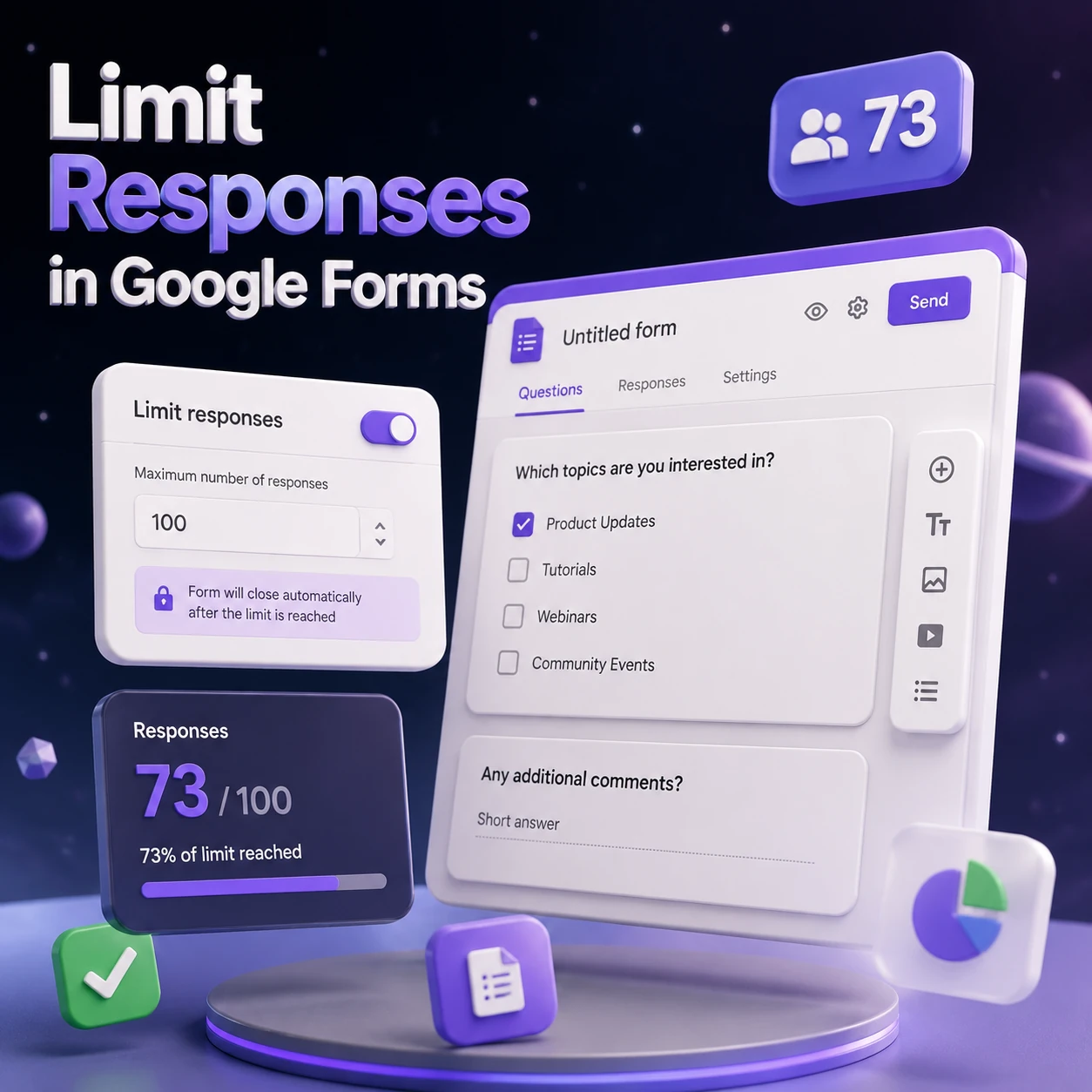
How to Limit Responses in Google Forms: The Complete Guide (2026 Update)

How to Limit Responses in Google Forms: The Complete Guide (2026 Update)
Introduction: Why Limiting Responses is a Game-Changer
Whether you are a teacher managing student submissions, an event organizer tracking RSVPs, or a business professional running a time-sensitive lead magnet, you’ve likely faced the same problem: data chaos.
Without response limits, you risk receiving junk data, duplicate entries, or hundreds of submissions after your campaign has already closed. While Google Forms is a powerful, free tool, it doesn’t always make its “stop” button obvious. In this guide, we’re going to dive deep into the mechanics of controlling your form traffic. Whether you are a beginner looking for the simple “off” switch or a power user seeking automated workflows, you’re in the right place.
The Native Approach: Manual Control
Google Forms has a built-in toggle that allows you to stop accepting responses instantly. While not “automated,” it is the most reliable way to prevent unwanted data.
How to Effortlessly Create a Stunning Form in Google Forms (2025)
How to Manually Stop Responses:
1. Open your Google Form.
2. Click the Responses tab at the top.
3. Toggle the switch for Accepting responses to Off.
4. (Optional) Customize the “Message for respondents” to tell them why the form is closed (e.g., “Registration is full!”).
When to use this: This is perfect for live events or limited-time webinars where you are present to manually toggle the switch once capacity is reached.
Automating Limits: The Best Add-ons for 2026
If you can’t be at your computer 24/7, Add-ons are your best friend. These third-party tools integrate directly into the Google Forms ecosystem.
Top 3 Recommended Add-ons:
1. formLimiter: The industry standard. It lets you set a maximum number of responses or a specific date/time for the form to close automatically.
2. Choice Eliminator Lite: Perfect for scheduling appointments or sign-up sheets where you need to remove an option once it’s selected.
3. Form Ranger: While more for population, it is often used in tandem with logic flows to limit responses based on external Sheets data.
Pro-Tip: Always test these Add-ons with a dummy account before launching your live form to ensure the auto-close trigger is firing correctly.
Advanced Workflow: Using Google Apps Script
For the tech-savvy, using Google Apps Script is the most robust, “no-bloat” solution. It avoids third-party permissions and gives you total control.
Simple Script Snippet:
You can add this script to your form’s linked Google Sheet to stop the form once a certain row count is reached.
function limitFormResponses() {
var sheet = SpreadsheetApp.getActiveSpreadsheet().getActiveSheet();
var maxResponses = 50; // Set your limit here
var currentRows = sheet.getLastRow() - 1; // Subtract header

if (currentRows >= maxResponses) {
var form = FormApp.openById('YOUR_FORM_ID_HERE');
form.setAcceptingResponses(false);
}
}
Note: To run this, go to your linked Sheet > Extensions > Apps Script, paste the code, and set a “Trigger” to run it on Form Submit.
Best Practices for Managing Data Flow
Always include a deadline: Even if you use an automated closer, clearly state the deadline on the form description to manage user expectations.
Use Confirmation Messages: If you close a form, ensure your custom message redirects users to your main website or newsletter so you don’t lose the lead.
Data Validation: Combine response limits with “Required” fields to ensure that every submission you do accept is high-quality.
Comparison: Native vs. Add-ons vs. Scripting
| Method | Ease of Use | Customization | Reliability |
| Native | Very High | Low | High |
| Add-ons | High | Medium | Medium |
| Apps Script | Low | Very High | Very High |
FAQ Section
Q: Does Google Forms automatically close when it reaches a limit?
A: Not natively. You must use an Add-on or a script to automate the closure.
Q: Is it safe to use third-party Add-ons?
A: Most popular Add-ons are reviewed by Google, but always check their privacy policy before granting them access to your data.
Q: Can I reopen a form after it has been closed?
A: Yes, simply toggle the “Accepting responses” switch back to “On” in the Responses tab.
Conclusion & Call to Action
Limiting responses in Google Forms is a simple yet essential skill for maintaining data integrity and managing project scope. Whether you opt for the manual switch, a user-friendly Add-on, or a custom Apps Script, taking control of your form’s lifecycle will save you hours of manual cleanup.
💡Which method are you going to try first? Drop a comment below if you have trouble with the script or want a recommendation for a specific use case!
YouTube Channel: https://www.youtube.com/@TechTrickswithEli2023
Telegram Channel: https://t.me/techtrickswithEli
Ready to master more Google tools?