
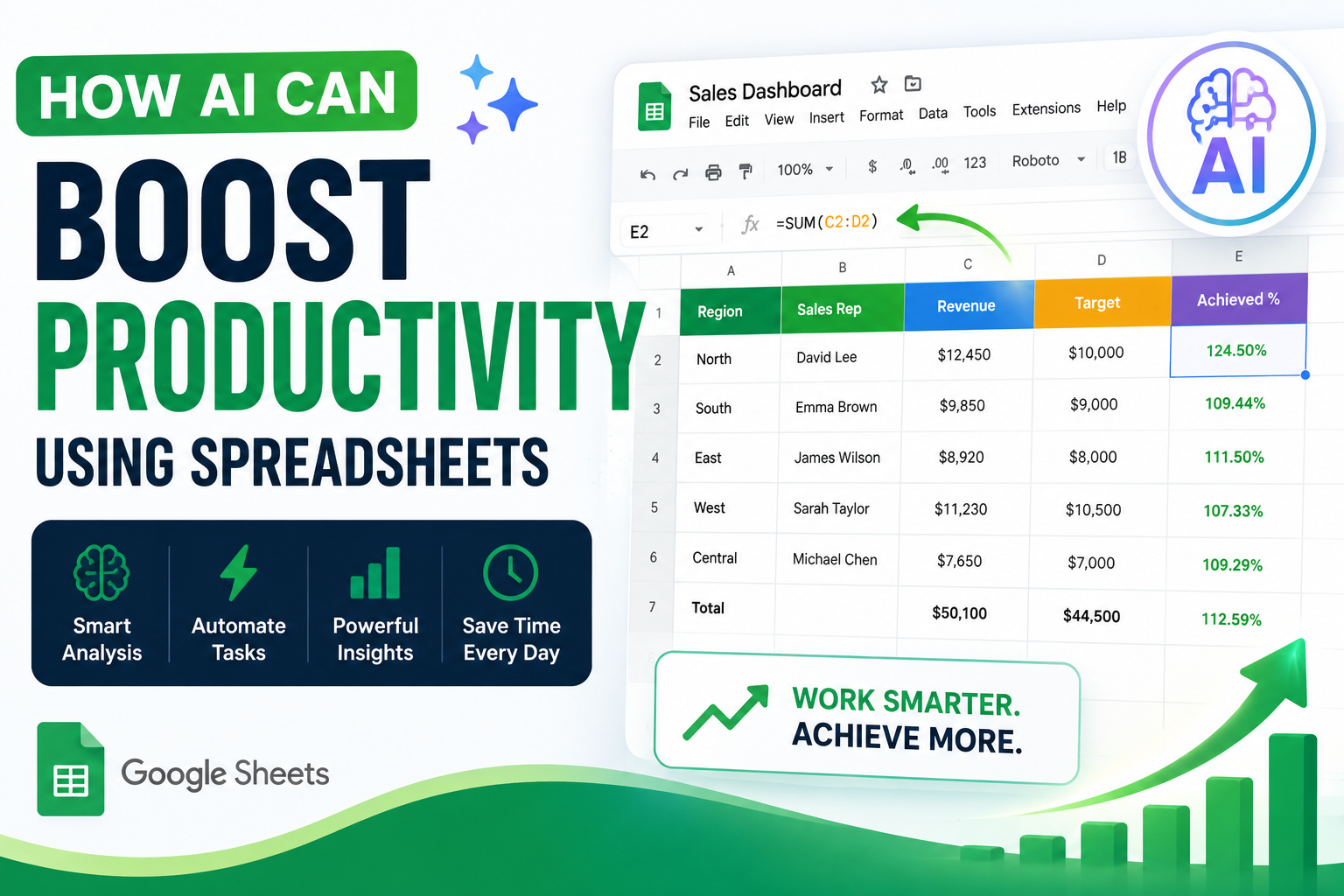
7 Powerful Ways AI Can Boost Productivity Using Spreadsheets

7 Powerful Ways AI Can Boost Productivity Using Spreadsheets
AI Can Boost Productivity Using Spreadsheets
Spreadsheets have always been one of the most useful tools for managing business data. From sales reports and budgets to project trackers and customer databases, teams use spreadsheets every day to organize information and make decisions.
But spreadsheets are changing.
With artificial intelligence now integrated into tools such as Google Sheets, teams can do much more than store and calculate data. AI can help create tables, generate formulas, analyze information, clean datasets, identify patterns, summarize results, and even complete complex spreadsheet tasks.
For professionals who spend hours working with spreadsheets, this can make a significant difference.
In this guide, we’ll explore how AI can boost productivity using spreadsheets, with a particular focus on Google Sheets and Gemini. We’ll also look at practical business examples and show how you can start using AI in your own spreadsheet workflows.
What Does AI in Spreadsheets Actually Mean?
AI-powered spreadsheets combine traditional spreadsheet functions with artificial intelligence.
Instead of manually figuring out every formula, formatting a dataset, or analyzing hundreds of rows, you can describe what you want in natural language and let AI assist with the process.
For example, instead of searching for the correct formula yourself, you could ask:
“Create a formula that calculates the percentage of completed tasks for each employee.”
AI can generate a formula based on your request and the structure of your spreadsheet.
In Google Sheets, Gemini can help users create tables and formulas, analyze data, generate charts, summarize spreadsheets, and perform a growing range of spreadsheet tasks. Some capabilities depend on the Google Workspace or Google AI plan available to your organization.
The important point is that AI doesn’t replace the spreadsheet. It makes the spreadsheet easier and faster to use.
1. Generate Spreadsheet Formulas with AI
One of the biggest productivity challenges for spreadsheet users is writing formulas.
Functions such as:
XLOOKUPINDEXandMATCHFILTERQUERYSUMIFSCOUNTIFSARRAYFORMULA- nested
IFstatements
can be extremely powerful, but they can also be difficult to remember and troubleshoot.
Gemini in Google Sheets can generate formulas from natural-language instructions. For example:
“Create a formula that finds the customer ID in column A and returns the customer’s region from columns D to G.”
You can then review the generated formula before inserting it into the spreadsheet.
Why this improves productivity
AI-assisted formula generation can help you:
- Build formulas faster
- Reduce syntax errors
- Learn unfamiliar functions
- Modify existing formulas
- Explain complicated formulas
- Spend less time searching for solutions
Pro Tip
Don’t simply ask:
“Write a formula.”
Give AI context.
A better prompt is:
“In my sales sheet, column B contains sales representatives, column C contains regions, and column D contains revenue. Create a formula that calculates total revenue for each region.”
The more context you provide, the more useful the result is likely to be.
2. Analyze Large Amounts of Data Faster
Spreadsheet analysis can become extremely time-consuming when you’re dealing with thousands of rows.
You might need to identify:
- Best-performing products
- Sales trends
- Customer behavior
- Regional differences
- Unusual values
- Monthly performance
- Conversion patterns
AI can help you move from raw data to useful questions and insights much faster.
Gemini in Google Sheets can analyze spreadsheet data and help users generate insights, charts, and other outputs. Google also describes use cases across sales, HR, customer service, and marketing.
For example, instead of manually reviewing a sales table, you could ask:
“Analyze this sales dataset and identify the three products with the highest revenue.”
Or:
“Which region experienced the largest month-over-month increase?”
The AI output should be treated as a starting point for analysis—not as an unquestionable answer.
3. Create Tables and Spreadsheet Structures Automatically
Starting a spreadsheet from a blank screen can take longer than expected.
You need to decide:
- Which columns to create
- How to organize the data
- What categories to use
- Which fields are necessary
- How the information should be presented
Gemini can help create tables from natural-language instructions.
For example:
“Create a project tracker with columns for task, responsible person, priority, deadline, status, and notes.”
Google’s current Gemini-in-Sheets documentation specifically supports creating tables from prompts and refining the generated result before inserting it into the spreadsheet.
This can be particularly useful when creating:
- Project trackers
- Marketing calendars
- Sales pipelines
- Budget templates
- Inventory trackers
- Employee onboarding sheets
- Content calendars
Instead of spending 20 minutes building the structure, you can start with an AI-generated framework and customize it.
4. Clean and Standardize Spreadsheet Data
Data cleaning is one of the least exciting—and most time-consuming—parts of working with spreadsheets.
A dataset might contain:
- Duplicate records
- Extra spaces
- Inconsistent formatting
- Missing values
- Different date formats
- Inconsistent capitalization
- Unexpected values
Google Sheets includes Smart Cleanup features that can identify issues such as duplicates, extra spaces, inconsistent formatting, anomalies, and other potential problems. Column Stats can also provide summaries and distributions for individual columns.
Google also offers enhanced Smart Fill capabilities using AI to detect relationships between incomplete columns and predict remaining values.
Example
Imagine you have this customer data:
| Customer Name | City |
|---|---|
| John Smith | new york |
| Sarah Jones | New York |
| David Lee | NEW YORK |
AI-assisted cleanup can help identify inconsistencies so that the dataset can be standardized before analysis.
Why this matters
Clean data produces better reports.
If your data is inconsistent, even the most advanced AI analysis can produce misleading results.
5. Use AI to Categorize and Summarize Text
Spreadsheets aren’t only about numbers.
Businesses often store large amounts of text in spreadsheets, including:
- Customer feedback
- Product reviews
- Survey responses
- Support tickets
- Employee comments
- Sales notes
- Research observations
AI can help classify and summarize this information.
For example, a customer feedback spreadsheet might contain hundreds of comments.
You could use AI to categorize each comment as:
- Positive
- Negative
- Neutral
Or create categories such as:
- Product quality
- Customer service
- Delivery
- Pricing
- Technical issue
Google Sheets also provides an AI function that can generate, summarize, and categorize content directly in cells.
This can turn an unstructured text column into useful business information.
6. Build Charts and Dashboards Faster
Creating a useful dashboard usually requires several steps:
- Clean the data
- Select the correct columns
- Calculate metrics
- Create charts
- Format the dashboard
- Interpret the results
AI can reduce some of this manual work.
Gemini in Sheets can assist with creating charts and visualizations from spreadsheet data. Google’s current documentation also describes capabilities for generating visual dashboards and analyzing datasets.
For example, you could ask:
“Create a dashboard showing monthly revenue, sales by region, and our top five products.”
You can then review the generated output and customize it for your organization.
Important
A good dashboard isn’t simply a collection of charts.
Before publishing an AI-generated dashboard, verify:
- The data source
- The calculations
- The selected metrics
- The chart type
- The date range
- Any assumptions made by the AI
7. Automate Repetitive Spreadsheet Tasks
AI becomes even more powerful when combined with automation.
Imagine your team receives new data every day.
A traditional workflow might look like this:
Receive data → Open spreadsheet → Copy data → Clean data → Calculate metrics → Create report → Send email
Automation can transform this into:
New data → Automated workflow → Process → Analyze → Update Google Sheets → Generate report → Notify team
Tools such as n8n, Google Apps Script, and other automation platforms can connect Google Sheets with external applications and services.
For example, an n8n workflow could:
- Receive data from a form or API.
- Process the information.
- Add the data to Google Sheets.
- Use AI to categorize or summarize it.
- Update a reporting sheet.
- Send a Gmail notification to the relevant team.
This is where AI and automation become particularly valuable: AI handles tasks that require interpretation, while automation handles repetitive execution.
Practical Business Examples
Marketing
A marketing team could use AI in Google Sheets to:
- Categorize campaign results
- Summarize customer feedback
- Generate campaign trackers
- Analyze conversion data
- Identify high-performing campaigns
For example:
“Analyze campaign performance and identify the campaigns with the highest conversion rate.”
Sales
Sales teams can use AI to:
- Categorize leads
- Analyze sales performance
- Identify high-value customers
- Summarize sales notes
- Build sales dashboards
A sales manager could ask:
“Identify the five sales representatives with the highest revenue this quarter.”
Human Resources
HR teams can use AI-assisted spreadsheets for:
- Candidate tracking
- Employee onboarding
- Survey analysis
- Training records
- Performance review summaries
For example:
“Categorize these employee survey responses into the five most common themes.”
Finance
Finance teams can use AI and automation to:
- Categorize expenses
- Analyze budgets
- Compare actual vs. planned spending
- Identify unusual transactions
- Generate financial reports
AI can accelerate analysis, while human review remains essential for financial decisions.
Operations
Operations teams can use AI-powered spreadsheets for:
- Inventory tracking
- Supplier management
- Task management
- Performance monitoring
- Resource planning
A spreadsheet can become much more than a static table when it is connected to automated data sources and AI-assisted analysis.
Step-by-Step: How to Start Using AI in Google Sheets
If you’re new to AI-powered spreadsheets, don’t try to automate your entire business immediately.
Start with one repetitive task.
Step 1: Choose a repetitive spreadsheet task
Look for something you do regularly.
For example:
“Every Monday I manually summarize last week’s sales.”
That’s a good candidate for AI.
Step 2: Clean your spreadsheet
Make sure your data has:
- Clear column names
- Consistent formats
- No unnecessary blank rows
- Logical data types
- Understandable categories
Step 3: Open Gemini in Google Sheets
Open an eligible Google Sheets file and use the Ask Gemini option to interact with your spreadsheet. Depending on your Workspace edition and available features, Gemini can help create formulas, tables, analyze data, and perform other tasks.
Step 4: Write a specific prompt
Instead of:
“Analyze my data.”
Try:
“Analyze the sales data from January through June. Identify the three fastest-growing regions and explain the main differences in their performance.”
Step 5: Review the result
Always check:
- Formulas
- Calculations
- Assumptions
- Data ranges
- Generated conclusions
AI can accelerate your work, but you remain responsible for the final result.
Step 6: Turn successful processes into workflows
Once you’ve identified a useful AI task, consider automating the surrounding process using:
- n8n
- Google Apps Script
- Google Workspace automation
- APIs
- Scheduled workflows
This is how a simple AI experiment can become a repeatable productivity system.
How to Write Better AI Prompts for Google Sheets
The quality of your prompt has a major impact on the usefulness of AI output.
A strong spreadsheet prompt usually includes four elements:
Context + Data + Task + Expected Output
Weak prompt:
“Analyze this.”
Better prompt:
“This spreadsheet contains monthly sales data by region. Analyze revenue growth from January to June and identify the three regions with the strongest growth. Present the results in a concise table.”
Even better:
“Analyze the sales dataset in this spreadsheet. Compare monthly revenue by region from January through June, calculate the percentage growth for each region, identify the three fastest-growing regions, and summarize the results in a table.”
The goal is to communicate what you want the AI to do—not simply ask it to “use AI.”
AI + Spreadsheets: What Should You Automate?
A simple rule can help:
Automate repetitive tasks.
Examples:
- Copying data
- Formatting rows
- Sending notifications
- Updating reports
- Moving files
- Categorizing recurring records
Use AI for tasks requiring interpretation.
Examples:
- Summarizing feedback
- Categorizing text
- Explaining trends
- Generating formulas
- Identifying patterns
- Creating analysis suggestions
Keep humans responsible for important decisions.
Examples:
- Financial approvals
- Hiring decisions
- Compliance decisions
- Sensitive employee information
- Strategic business decisions
The strongest workflow is often:
Human judgment + AI assistance + Automation
Important Security and Accuracy Considerations
AI can significantly improve spreadsheet productivity, but organizations should still establish appropriate controls.
Before using AI with business data:
- Understand which Workspace plan and AI features your organization has.
- Follow your organization’s data-handling policies.
- Avoid exposing confidential information to unauthorized third-party tools.
- Review AI-generated formulas and analysis.
- Validate important calculations independently.
- Control access to shared spreadsheets and Drive files.
Google states that Gemini in Workspace operates within existing organizational controls, permissions, and data-handling practices. However, organizations should still configure their Workspace environment appropriately and establish clear AI usage policies.
The Future of Spreadsheet Productivity
The spreadsheet is evolving from a passive data-storage tool into an increasingly intelligent workspace.
Instead of asking:
“What formula should I use?”
Users can increasingly ask:
“What do I want to accomplish?”
That’s a significant change.
As AI capabilities continue to develop, spreadsheet users will spend less time performing repetitive operations and more time interpreting information, making decisions, and solving problems.
For teams already using Google Workspace, this creates an opportunity to rethink how work gets done.
Conclusion: AI Can Turn Your Spreadsheet into a Productivity Engine
AI doesn’t make spreadsheets obsolete.
It makes them more powerful.
From generating formulas and building tables to analyzing datasets, cleaning information, summarizing text, and automating repetitive workflows, AI can help professionals accomplish more in less time.
The biggest productivity gains won’t necessarily come from using AI for everything. They will come from identifying the right tasks and combining AI, automation, and human expertise.
If your team uses Google Sheets every day, start small.
Choose one repetitive task. Ask AI to help. Verify the result. Then automate the workflow if it delivers real value.
That first experiment could be the beginning of a much smarter spreadsheet workflow.
Ready to work smarter? Explore our other Google Workspace and automation guides to discover more ways to improve your team’s productivity.
Frequently Asked Questions
Can AI be used in Google Sheets?
Yes. Google Sheets includes several AI-assisted capabilities through Gemini and the AI function, depending on your eligible Google Workspace or Google AI plan. These features can help with formulas, tables, analysis, text generation, categorization, and other spreadsheet tasks.
Can AI create formulas in Google Sheets?
Yes. Gemini can generate formulas based on natural-language instructions. Users can review the suggested formula and insert it into their spreadsheet.
Can AI analyze Google Sheets data?
Yes. Gemini in Google Sheets can assist with data analysis, summaries, charts, and insights. The exact capabilities available depend on the user’s plan and feature availability.
Can AI automate repetitive spreadsheet tasks?
Yes. AI can handle tasks such as categorization, summarization, formula generation, and data transformation. Automation platforms such as n8n and Google Apps Script can then connect these AI-assisted tasks to larger workflows.
Is AI in Google Sheets free?
AI availability depends on the Google Workspace or Google AI plan. Some advanced Gemini features require an eligible plan, and feature limits can vary between editions.
Should I trust AI-generated spreadsheet results?
AI-generated results should always be reviewed, especially when they involve financial, operational, legal, HR, or other high-impact decisions. AI is best used as a productivity assistant rather than a replacement for human verification.
YouTube Channel: https://www.youtube.com/@TechTrickswithEli2023
Telegram Channel: https://t.me/techtrickswithEli